MuJoCo Visualization
MuJoCo is a physics simulation platform designed for robotics development.
It provides a virtual environment where developers can test and validate robotic applications without physical hardware. Combined with ROS 2, MuJoCo allows you to simulate robot models, verify control algorithms, and visualize joint movements on your host PC while the RZ/V2H RDK board runs the perception and control pipeline.
This guide walks through installing MuJoCo, setting up the required ROS 2 packages, building the workspace, and launching a simulation.
Prerequisites
Before starting, make sure:
Your host PC runs Ubuntu with a display. MuJoCo requires a graphical environment.
ROS 2 Jazzy is installed on the host PC. Follow the ROS 2 Jazzy installation guide if needed.
Your host PC and the RZ/V2H RDK board are on the same network and use the same ROS 2 Domain ID.
A ROS 2 application is running on the RZ/V2H RDK board and publishes the topics consumed by the MuJoCo simulation, for example, joint commands from the Arm Teleoperation application.
Install MuJoCo and ROS 2 Packages for Host PC
The MuJoCo simulation requires several packages to be installed in your ROS 2 Jazzy workspace on the host PC.
Core MuJoCo Packages
The following packages are required for any MuJoCo-based simulation:
Package |
Description |
|---|---|
MuJoCo physics engine library. |
|
ROS 2 control plugin for MuJoCo that bridges |
|
ROS 2 simulation wrapper that launches MuJoCo with a robot model and connects it to the ROS 2 ecosystem. |
Application-specific Packages
Depending on which application you want to simulate, additional packages are needed on the host PC.
For the Arm Teleoperation application:
Package |
Description |
|---|---|
URDF and mesh files that describe the AgileX Piper arm. |
|
MuJoCo-specific launch files, MJCF model, and controllers for the AgileX Piper arm. |
|
Cartesian motion controllers used by the arm teleoperation pipeline. |
For other applications, refer to the corresponding application documentation for any additional packages that may be required.
Clone all required packages into the src/ directory of your ROS 2 Jazzy workspace on the host PC.
Import the required repositories by using the vcs command:
cd ~/ros2_ws
git clone https://github.com/renesas-rdk/ros2_demo_workspace.git
vcs import < ./ros2_demo_workspace/vcs_manifests/rz-v2h/vision_based_robotic_arm_teleoperation.host.lock.repos
Native Build the ROS 2 Workspace for the Host PC
Before build this package configure environment variable for mujoco directory.
# export path to mujoco directory
export MUJOCO_DIR=~/ros2_ws/src/mujoco
After cloning all required packages, build the workspace:
Navigate to your ROS 2 Jazzy workspace:
cd ~/ros2_ws
Install dependencies:
rosdep update
rosdep install --from-paths src --ignore-src -r -y
Build the workspace:
colcon build --symlink-install
Note
The
--symlink-installoption creates symbolic links instead of copying files, so changes to configuration files or launch files take effect without rebuilding.Source the workspace:
source /opt/ros/jazzy/setup.bash
source ./install/setup.bash
Build and Run the Application on the RZ/V2H RDK Board
Before launching the MuJoCo simulation on the host PC, the ROS 2 application must be running on the RZ/V2H RDK board so that it publishes the joint command topics that MuJoCo subscribes to.
Cross-compile the ROS 2 Workspace
Set up the RZ/V2H RDK board as described in the RZ/V2H RDK board setup.
Set up the host machine for cross-compilation as described in Development Guide.
Collect all required ROS 2 packages in the
ros2_ws/src/directory inside the cross-compile docker container.Import the required repositories by using the
vcscommand:cd ~/ros2_ws git clone https://github.com/renesas-rdk/ros2_demo_workspace.git vcs import < ./ros2_demo_workspace/vcs_manifests/rz-v2h/vision_based_robotic_arm_teleoperation.target.lock.repos
Cross-compile the ROS 2 workspace using cross-build the ROS 2 Application.
# Install the dependencies first
sysroot-rosdep-install

# Cross build the application
cross-colcon-build
Deploy and Run on the Board
Deploy the
installdirectory to the RZ/V2H RDK board using Deploying the ROS 2 Application or using thescpcommand.scp -r install ubuntu@board_ip:~/ros2_ws/
Install the required dependencies on the RZ/V2H RDK board:
cd /home/ubuntu/ros2_ws
source /opt/ros/jazzy/setup.bash
rosdep install --from-paths ./install/*/share -y -r --ignore-src
The
/home/ubuntu/ros2_wsdirectory is the location where you copied the cross-compiled workspace on the board.Connect a compatible USB camera to the RZ/V2H RDK board if the application requires camera input.
Source the workspace on the board:
source /opt/ros/jazzy/setup.bash
source ./install/setup.bash
Launch the application with MuJoCo mode enabled.
For example, for the Arm Teleoperation application:
ros2 launch rzv_playground hand_palm_pose_teleop_piper_gripper.launch.py \
   bringup_launch_file:=agilex_piper_mujoco_cartesian_control.launch.py
For other applications, refer to the respective sample application documentation for the correct launch command with MuJoCo support.
Important
The board application must be running before you launch the MuJoCo simulation on the host PC. The MuJoCo simulation subscribes to ROS 2 topics published by the board. If the board is not running, the simulation will start but the robot will not move.
Launch the MuJoCo Simulation on the Host PC
With the board application running and the host PC workspace built and sourced, you can launch the MuJoCo simulation.
The following example launches the MuJoCo simulation for the Arm Teleoperation application:
ros2 launch agilex_piper_mujoco bringup_mujoco_cartesian_motion_controller.launch.py
The MuJoCo simulator window should open and display the robotic arm:
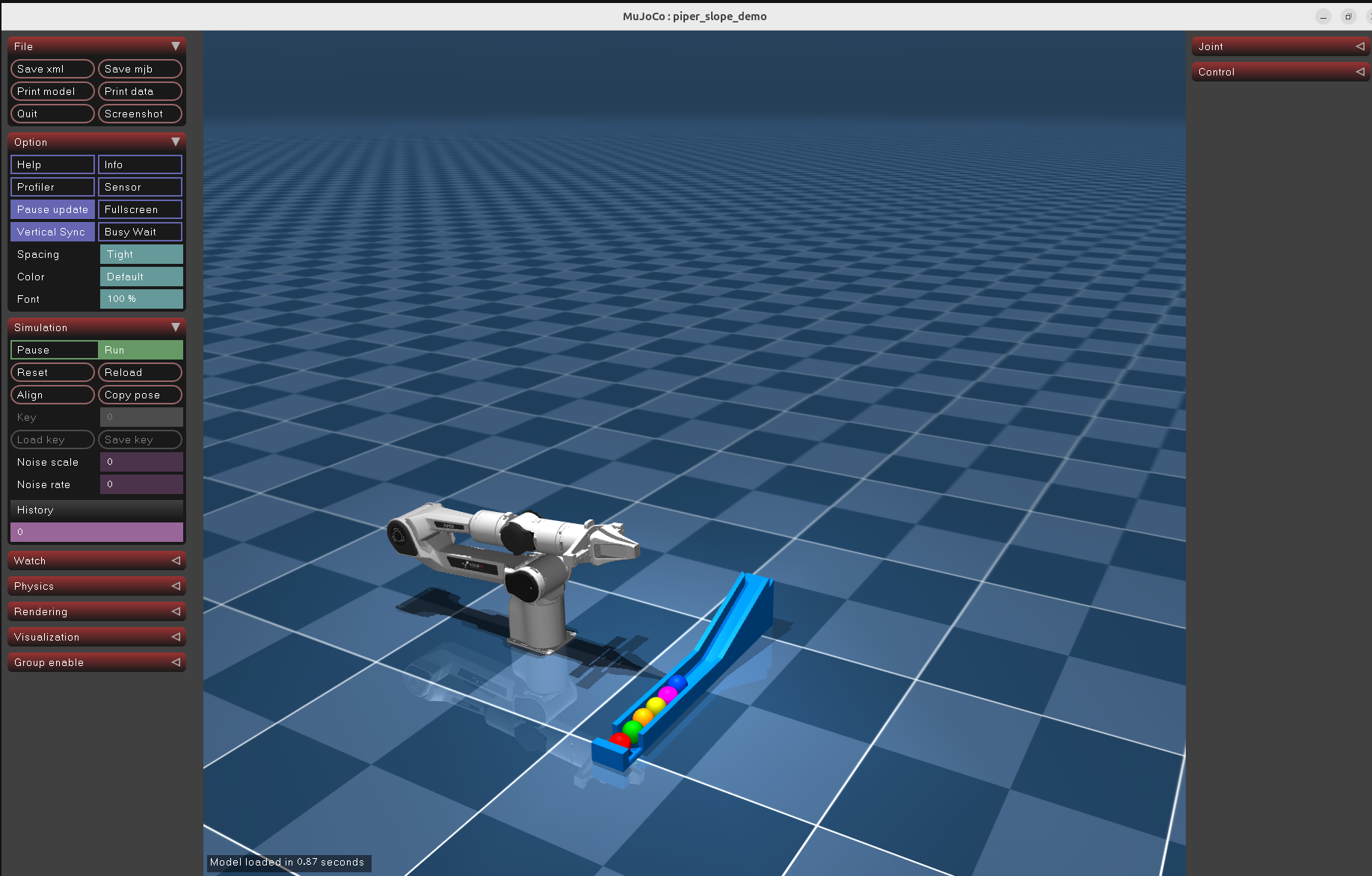
MuJoCo simulation of the RZ/V Demo Arm Teleoperation application
How MuJoCo Works with the RZ/V2H RDK
The MuJoCo simulation runs on the host PC and communicates with the RZ/V2H RDK board over ROS 2 topics:
The RZ/V2H RDK board runs the perception pipeline, such as camera input and AI inference, and publishes joint commands as ROS 2 topics.
The host PC runs the MuJoCo simulation, which subscribes to those joint command topics and renders the robot model in real time.
The simulated robot mirrors the commands from the board, which lets you observe the intended movements without connecting physical hardware.
This setup is useful for:
verifying control algorithms before deploying to real hardware,
demonstrating application behavior without a physical robot,
debugging joint command values by observing the simulated motion, and
developing and testing on the host PC when the robot arm is not available.
Tip
Make sure that the host PC and the RZ/V2H RDK board use the same ROS_DOMAIN_ID. If they use different domain IDs, the MuJoCo simulation will not receive the joint commands from the board.
Check the current domain ID on both machines:
echo $ROS_DOMAIN_ID
Set the domain ID if needed:
export ROS_DOMAIN_ID=<your-domain-id>
Interacting with the MuJoCo Simulation
Once the simulation is running, you can interact with the MuJoCo viewer:
Rotate the view: Click and drag with the left mouse button.
Pan the view: Click and drag with the right mouse button.
Zoom: Scroll the mouse wheel.
Pause or resume the simulation: Press the Space key.
Step the simulation: Press the Right Arrow key while paused to advance one step at a time.
Reset the view: Double-click the left mouse button.
The simulation window also displays physics information such as simulation time, frame rate, and contact forces.
Troubleshooting
MuJoCo window does not open
Make sure you are running on a machine with a display. MuJoCo requires a graphical environment.
If you are using SSH, enable X11 forwarding:
ssh -X user@host-pc
Alternatively, use a remote desktop solution.
Build fails with missing dependencies
Run
rosdep installagain to install any missing system dependencies:rosdep install --from-paths src --ignore-src -r -y
Make sure all required packages are cloned into the
src/directory.Simulation runs but the robot does not move
Verify that the RZ/V2H RDK board is running and publishing joint command topics.
Check the available topics on the host PC:
ros2 topic list
Verify that the board and host PC use the same
ROS_DOMAIN_ID.Check that the correct launch file is used on the RZ/V2H RDK board as described in Step 3.
Poor rendering performance
MuJoCo uses GPU acceleration when available. Make sure your GPU drivers are up to date.
If you are running in a virtual machine, GPU passthrough or software rendering may be required.