Cross compilation Environment Setup
This section provides instructions on how to set up the cross-compilation environment for building ROS 2 applications for the Renesas RZ/V2H RDK platform.
Hardware requirements
Supported host operating systems:
Linux: Ubuntu 24.04 (x86_64) - recommended.
Windows: Windows 10/11 (x86_64) with Docker Desktop or WSL2 (Ubuntu 24.04).
macOS: macOS 13 Ventura or later on Apple Silicon - provide good performance.
The following image show the expected setup for cross-building applications for the RZ/V2H RDK platform:
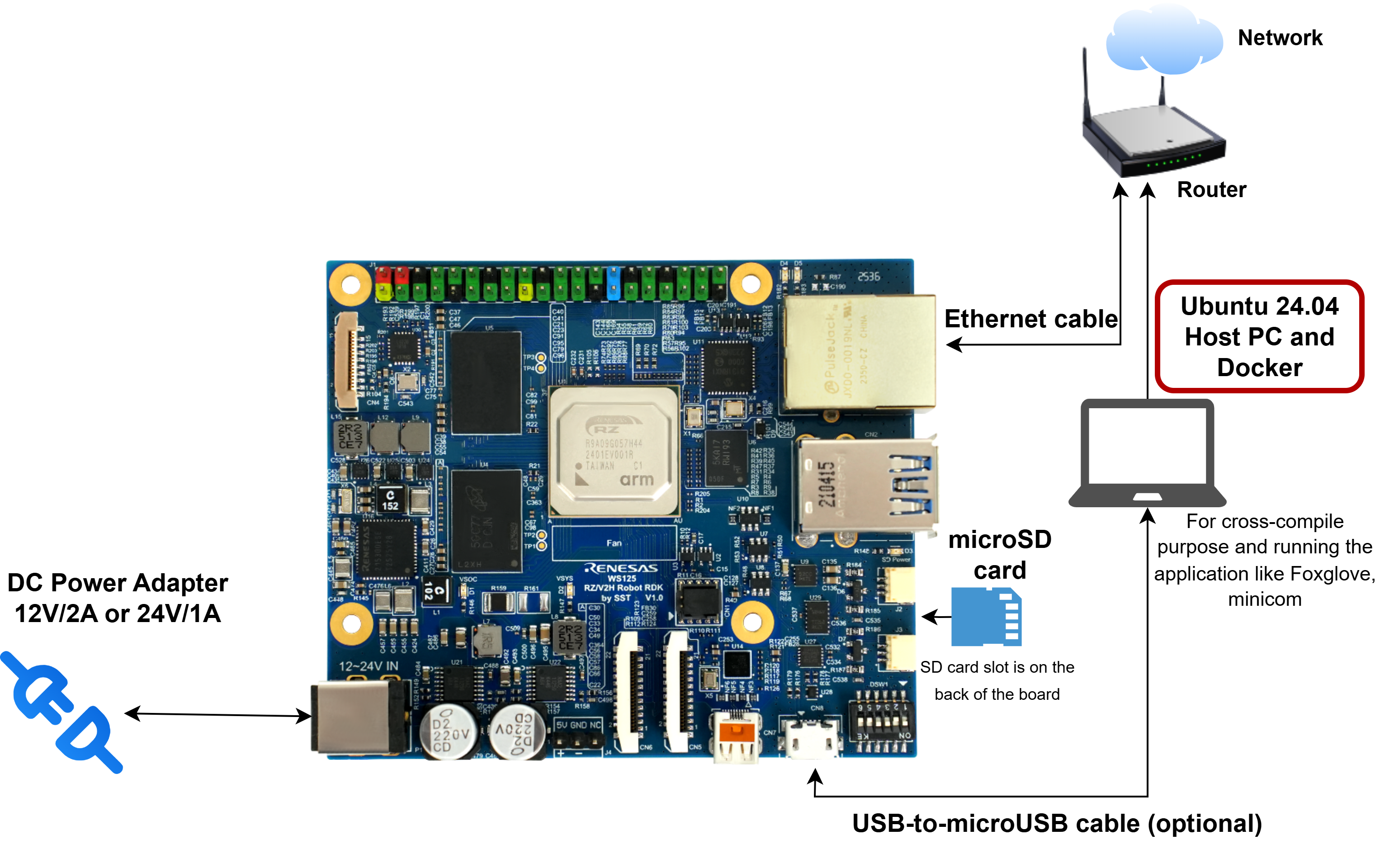
Cross Build Hardware Setup Diagram
Make sure your board and host machine are properly set up and connected to the same network to enable communication between them during development and deployment.
Software requirements on the host machine
This section describes the required software on the host machine and how to set up and access the Docker-based cross-compilation environment.
Required software
Docker installed on the host machine.
VS Code for code editing and development.
Remote - Containers extension installed in VS Code for developing inside the Docker container.
Docker environment setup
Run the setup script to create the Docker-based cross-compilation environment.
For Linux, macOS and WSL2, open a terminal and run:
wget https://github.com/renesas-rdk/ros2_demo_workspace/raw/refs/heads/main/common_utils/setup_rdk_docker.sh
chmod +x setup_rdk_docker.sh
Then run it:
./setup_rdk_docker.sh
For Windows, open a Docker Desktop terminal (PowerShell) and run:
Invoke-WebRequest -Uri "https://github.com/renesas-rdk/ros2_demo_workspace/raw/refs/heads/main/common_utils/setup_rdk_docker.ps1" -OutFile "setup_rdk_docker.ps1"
Set-ExecutionPolicy -ExecutionPolicy RemoteSigned -Scope CurrentUser
.\setup_rdk_docker.ps1
The setup script performs the following tasks:
checks if the current script is the latest version by comparing it with the remote version on GitHub, if not it prompts to download the latest version.
checks whether the Docker image already exists locally
compares the local image digest with the remote image digest when
docker buildxis availablepulls the image only if needed or if the remote image differs
creates the ROS 2 workspace mount point on the host machine
creates and starts the Docker container
optionally prepares the ROS 2 workspace inside the container
The script supports command-line options for non-interactive use:
# For Linux, macOS and WSL2
./setup_rdk_docker.sh [platform] [options]

# For Windows
.\setup_rdk_docker.ps1 [platform] [options]
If you want to specify custom options, run
./setup_rdk_docker.sh --helpfor Linux, macOS and WSL2 or.\setup_rdk_docker.ps1 --helpfor Windows to see the available command-line arguments.Note
The script can be reused to create additional containers. Each container must have a unique name. If a container with the specified name already exists, the script exits with an error and suggests removing the existing container or choosing a different name.
Provide the required information when prompted.
When run without command-line options, the script asks for:
the Docker container name (default:
ros2_cross_build_container)the ROS 2 workspace path on the host machine (default:
$HOME/ros2_ws)
If you press
Enterwithout typing a value, the default value is used.Example:
Enter container name [default: ros2_cross_build_container]:
Enter ROS 2 workspace path on host [default: /home/user/ros2_ws]:
The script then displays the configuration summary and asks for confirmation before proceeding.
Access the Docker container from a terminal.
After the script completes, it offers to open a shell inside the container. If you decline or if the script finishes without opening a shell, access the container with:
docker exec -it <container_name> bash
Replace
<container_name>with the name you chose during setup (default:ros2_cross_build_container).Inside the container, go to your ROS 2 workspace.
cd ~/ros2_ws
Update the APT repository list in the target sysroot. This command ensures that the latest package information is available for installing dependencies.
arm64-chroot apt update
Tip
The cross build environment uses the toolchain files (under /home/ubuntu/toolchains) from the ubuntu_xbuild_toolchains repository.
When a new release of the toolchain files is available, instead of rebuilding the Docker container (which can take a long time, since you have to install the dependencies again), you can simply restart the container and the toolchains will update automatically.
However, if you have modified the toolchain files in a way that conflicts with the new release, you may need to resolve the conflict manually.
We recommend restarting the container first and checking whether the auto update worked by using the docker logs command. If the auto update fails, you can enter the container and resolve the conflict manually.
Accessing the Docker container from VS Code
After the Docker container is running, you can connect to it directly from VS Code using the Remote - Containers extension.
Open VS Code on the host machine.
Open the Command Palette
(Ctrl+Shift+P).Run Remote-Containers: Attach to Running Container…
Select
$CONTAINER_NAMEfrom the list of running containers.Once connected, open the
/home/ubuntu/ros2_wsdirectory inside the container.
This allows you to edit source files, use the integrated terminal, and work directly inside the cross-compilation environment from VS Code.
Tip
Environment variables set in the Docker container:
$ROS2_WS: Default ROS 2 workspace directory, set to/home/ubuntu/ros2_ws. You can use this variable to navigate to your ROS 2 workspace inside the container.$TOOLCHAINS_WS: Directory for cross-compilation toolchain files.