Video Codec Library
The RZ/V2H Video Codec Library provides hardware-accelerated video encoding and decoding capabilities in combination with DRP IP.
This software supports the following features:
H.264 encoding and decoding
H.265 encoding and decoding
Usage notes
Important
In this release, the Video Codec Library is available only with the default image,
ubuntu-24.04-server-arm64-rzv2h-rdk.img.xz, which is the Ubuntu 24.04 Server image with the Weston compositor for the RZ/V2H RDK board.The Ubuntu Desktop environment may not be compatible with the Video Codec Library in this release.
The GStreamer base plugins are installed from the apt repository, not the custom version provided by Renesas. As a result, the behavior of the Video Codec Library may differ from the behavior described for the Renesas-provided custom GStreamer base plugins.
See also
For more information about how to use the Video Codec Library, refer to the Linux Interface Specification GStreamer.
This guide provides GStreamer usage information for integrating available Video Codec features.
Note
Be aware of the following limitations when using the Video Codec Library compared with the Yocto image provided by Renesas:
On page 30 of 62, the Linux Interface Specification GStreamer includes a note about how to use
vspmfilterwith USB cameras. That note applies to the Yocto-based image.For the Ubuntu-based image, use the following commands instead:
sudo modprobe -r uvcvideo
sudo modprobe uvcvideo allocators=1
You do not need to configure audio settings for the Video Codec Library, because audio is enabled by default on RZ/V2H RDK.
You cannot configure
vspmfiltersettings globally for all pipelines by default. If you want to use the Video Codec Library withvspmfiltersettings, include thevspmfilterelement explicitly in your GStreamer pipeline.
Quick Start Guide
The following sections provide quick start guides for using the Video Codec Library with the default Ubuntu image on the RZ/V2H RDK. These guides include prerequisites and usage examples to help you get started with video encoding and decoding using the Video Codec Library.
Prerequisites
Boot the RZ/V2H RDK board with the default Ubuntu image,
ubuntu-24.04-server-arm64-rzv2h-rdk.img.xz. For instructions on how to prepare the SD card and boot the board, refer to the Quick Setup Guide.Connect the RZ/V2H RDK board to a monitor by using the micro-HDMI interface, and make sure that the board is powered on.
The following image shows the RZ/V2H RDK connected to a monitor as well as a MIPI-CSI/USB camera for video capture.
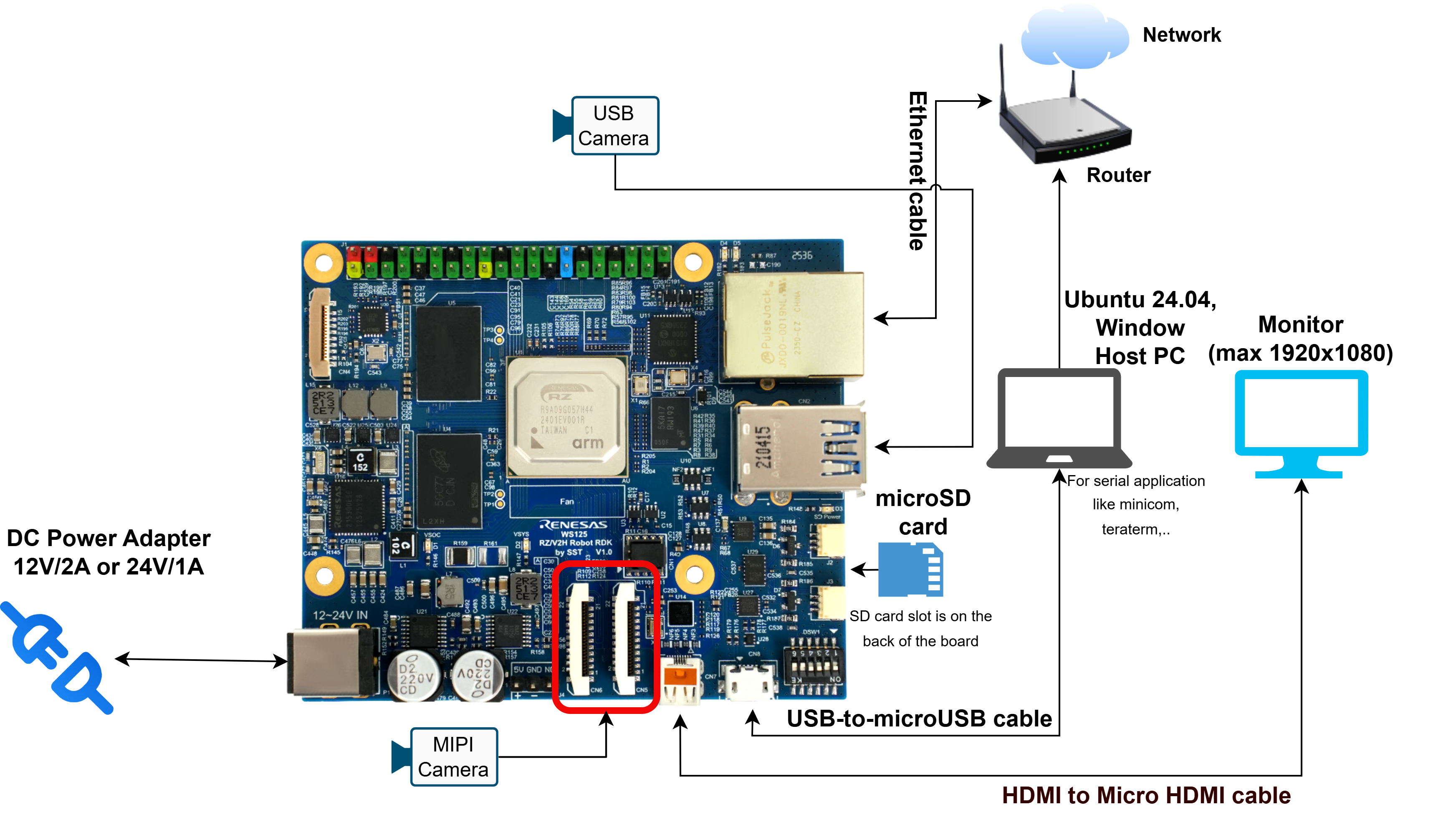
RZ/V2H RDK setting up with a monitor
Usage examples
To use the Video Codec Library, install the GStreamer base plugins.
sudo apt update
sudo apt install gstreamer1.0-tools gstreamer1.0-plugins-good gstreamer1.0-plugins-bad gstreamer1.0-plugins-ugly gstreamer1.0-libav -y
To play a video file by using the Video Codec Library, run the following command:
# Prepare a video file in advance and replace the file path in the command below.
gst-launch-1.0 filesrc location=/home/ubuntu/h264-hd-30.mp4 ! qtdemux ! h264parse ! omxh264dec ! waylandsink
To capture video from a USB camera and display it by using the Video Codec Library, run the following commands:
# Set up the uvcvideo module for USB camera usage.
# Otherwise, you may encounter a kernel panic when using the USB camera with the Video Codec Library and vspmfilter.
sudo modprobe -r uvcvideo
sudo modprobe uvcvideo allocators=1
Check the available video devices and their formats:
# Install the v4l2-ctl tool if it is not already installed.
sudo apt install v4l-utils -y

# Check the available video devices and their formats.
v4l2-ctl --list-devices
v4l2-ctl --device=/dev/video0 --list-formats-ext
Start video capture from the USB camera. Replace /dev/video0 or the video format with the appropriate device or format if necessary.
# H.264 encoding and decoding
gst-launch-1.0 v4l2src device=/dev/video0 ! \
   "video/x-raw,format=YUY2,width=640,height=480,framerate=30/1" ! \
   vspmfilter dmabuf-use=true ! \
   "video/x-raw,format=NV12" ! \
   omxh264enc control-rate=2 target-bitrate=8388608 ! \
   omxh264dec ! \
   waylandsink
# H.265 encoding and decoding
gst-launch-1.0 v4l2src device=/dev/video0 ! \
   "video/x-raw,format=YUY2,width=640,height=480,framerate=30/1" ! \
   vspmfilter dmabuf-use=true ! \
   "video/x-raw,format=NV12" ! \
   omxh265enc ! \
   omxh265dec ! \
   fpsdisplaysink video-sink=waylandsink text-overlay=true sync=false
To capture video from a MIPI camera and display it by using the Video Codec Library, following the steps below:
Set up the MIPI camera by using the following command:
# Install necessary packages if they are not already installed.
sudo apt install v4l-utils -y

# Download the v4l2-init.sh script
wget https://github.com/Renesas-SST/meta-renesas/raw/refs/heads/styhead/rz-cmn/recipes-extend/v4l2-init/files/v4l2-init.sh

# Make the script executable
chmod +x v4l2-init.sh

# Run the script to initialize the camera
./v4l2-init.sh
Start the video capture from the MIPI camera. Replace the video format with the appropriate format if necessary.
# H.264 encoding and decoding
gst-launch-1.0 v4l2src device=/dev/video0 ! \
        "video/x-raw,format=YUY2,width=1920,height=1080,framerate=15/1" ! \
        vspmfilter dmabuf-use=true ! \
        "video/x-raw,format=NV12" ! \
        omxh264enc control-rate=2 target-bitrate=8388608 ! \
        omxh264dec ! \
        waylandsink
# H.265 encoding and decoding
gst-launch-1.0 v4l2src device=/dev/video0 ! \
        "video/x-raw,format=YUY2,width=1920,height=1080,framerate=15/1" ! \
        vspmfilter dmabuf-use=true ! \
        "video/x-raw,format=NV12" ! \
        omxh265enc ! \
        omxh265dec ! \
        fpsdisplaysink video-sink=waylandsink text-overlay=true sync=false
The Linux Interface Specification GStreamer provides more examples of using the Video Codec Library with GStreamer.
Refer to the manual for more details about how to use the Video Codec Library and its features.